What are the Best Typing Practice Softwares in 2026 ?
Typing has become a basic skill for most desk jobs, yet many people never learn proper finger placement or efficient keyboard habits. Good typing software can fix that. But with dozens of options available, choosing the right one gets confusing.
This guide compares the most useful typing practice tools in 2026 based on actual criteria: what operating system they run on, how they charge, what teaching method they use, and who they actually help. No affiliate rankings here.
Typesy
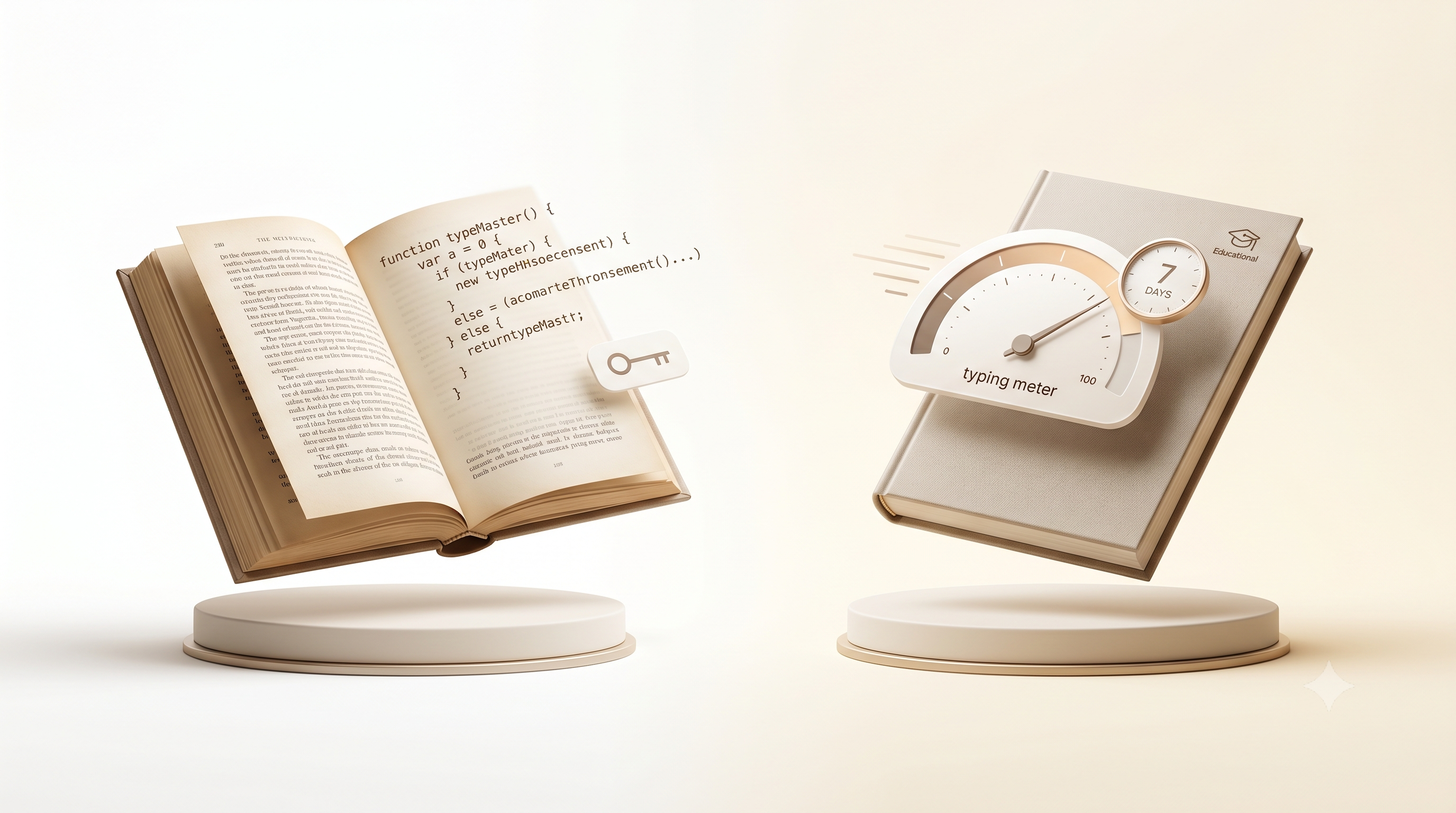
Typesy runs on Windows, Mac, and Linux. It also works on Chromebooks through a browser. The pricing is a monthly subscription at nine dollars, with a seven-day free trial. Family and homeschool plans start at sixty-seven dollars.
What makes Typesy stand out is the amount of material. It has over five thousand lessons, video tutorials showing correct finger placement, and adaptive difficulty that adjusts to your skill level. The videos are helpful for visual learners who need to see where fingers go, not just read about it.
The main drawback is the subscription. Paying every month for typing software feels unnecessary for someone who only needs two or three months of practice. Typesy does not offer a one-time purchase option for individual users.
Best for adults and students who want a complete set of features and will use it regularly.
TypingMaster (also called TypingMagic)
TypingMaster only runs on Windows. No Mac version exists. The cost is low: four dollars and ninety cents per month, or twenty-nine dollars for a full year. Schools can get licenses starting at three hundred seventy-three dollars per year for fifty seats.
The program has been around since 1996 and follows a structured progression. It tracks accuracy for each key and adapts difficulty. The most useful feature is the TypingMeter widget. This runs in the background while you use any Windows application, monitors your actual typing, and creates exercises based on mistakes you make in real work.
The interface looks old, but it works. The biggest limit is Windows-only. If you use a Mac or Linux, look elsewhere.
Best for Windows users who want good value for a low annual cost.
Typing.com
Typing.com works in any browser on any device. The free plan has ads. A paid Plus tier removes ads and adds features. Schools pay enterprise pricing.
This is the most widely used free typing platform worldwide. No installation needed. The free version covers beginner, intermediate, and advanced courses. It takes a person from hunting for keys to touch typing. For schools, it connects with Google Classroom, ClassLink, and Clever. Teachers can track progress and assign lessons without installing software on each computer.
The free version shows ads, which can distract learners. The paid tier removes them. The main limitation is depth. For basic skills, it works great. For advanced typists who need detailed feedback on each key or structured speed development, the curriculum runs out.
Best for beginners with no budget, and for schools needing an easy deployment.
KAZ Typing Tutor
KAZ Typing Tutor runs on Mac and Windows, either as a download or online version. The online version costs twenty-four dollars and ninety-nine cents. The download version is thirty-nine dollars and ninety-nine cents. A family version is seventy-four dollars and ninety-nine cents. All are one-time purchases with a fourteen-day money-back guarantee.
Most typing tutors teach keys one by one over weeks. KAZ claims to teach the full A-Z layout in ninety minutes. It uses eleven words and five phrases repeated through sight, sound, and touch at the same time. Researchers in dyslexia and cognitive learning helped develop this method. It works for many adults who prefer a fast, direct approach.
There are no games, no badges, no leaderboards. If you need gamification to stay motivated, this is not for you. If you find games distracting and want to learn quickly, KAZ is efficient.
Best for businesses and adult learners who want a no-nonsense method without ongoing fees.
TypingClub
TypingClub runs in any browser. The individual version is free. Schools pay ninety-nine dollars and seventy-five cents per year per school license.
It is the standard choice for schools needing a free, browser-based option with classroom management. The free individual version has hundreds of lessons, progress tracking, stars, badges, and a structured curriculum from finger placement to full-speed practice. The school edition adds teacher dashboards, class management, custom assignments, and detailed reporting.
The target audience is clearly children. The interface feels young. Adults can use it, but it may not be motivating. The depth of feedback and per-key accuracy tracking is less than desktop options like Typesy or KAZ.
Best for primary school classrooms on any budget. Not ideal for professional adults.
Typiq
Typiq runs on Mac, Windows, Linux, and Chromebook. It costs eighteen euros and ninety-nine cents as a one-time purchase for one device. Classroom and school tiers are in development.
This is a newer product without the user base or reviews of older software. But it makes specific choices that matter to certain users. It supports Mac natively, which TypingMaster does not. It is a one-time purchase, while Typesy requires a subscription. It supports eight languages: English, Romanian, German, French, Italian, Spanish, Portuguese, and Greek. Romanian and Greek are not covered by most other typing tutors.
The free trial is thirty minutes of actual typing time, not seven calendar days. There are no video tutorials and no background monitoring widget. The user base is small, so fewer third-party reviews exist.
Best for Mac users who want a desktop typing tutor without a subscription, and for users who need Romanian, Greek, Italian, or Portuguese language support.
TypeMaster (by NTXM)
TypeMaster is a free typing tutor developed by NTXM. It works online in a browser and also as a desktop application for Windows and Mac offline. No subscription, no ads, no account required for basic use.
The software includes structured lessons from beginner to advanced levels, real-time WPM tracking, accuracy measurement, and performance analytics. Its unique feature is Story Mode, where you practice by typing passages from classic literature and real-world texts instead of random word drills. This makes practice more engaging because you type meaningful content. The interface is clean and distraction-free.
Progress saves locally on your device, so it works without internet. Privacy is built in because no typing data leaves your computer. You can also follow the developer’s work at Nitiksh’s page.
The main limitation is that it is newer, so the library of stories and lessons is growing but not as large as some established competitors. Also, advanced analytics like per-finger heatmaps are not yet available.
Best for students, professionals, writers, and developers who want free, offline typing practice with meaningful content and no distractions.
Other Notable Options
Keybr – Keybr.com focuses on adaptive drills. It tracks which letters you mistype most often and generates practice sessions targeting those weak keys. Free and browser-based. Best for typists who already know basic finger placement but have specific problem keys.
Monkeytype – Monkeytype.com is a minimalist speed test with extensive customization. You can practice on common word lists, quotes from books, or even programming code. Free, no registration needed. Best for intermediate and advanced typists who want to measure and improve raw speed.
10FastFingers – 10fastfingers.com offers tests based on the two hundred most common English words. Also has a multiplayer mode. Simple and fast. Best for building muscle memory on high-frequency words.
TypeRacer – play.typeracer.com turns typing practice into real-time races against other people. You type passages from books, movies, or songs. The competitive pressure pushes many users to type faster than they would alone. Best for motivation through competition.
Ratatype – Ratatype.com provides structured courses and issues printable certificates for typing speed. The certificates include a unique URL that employers can verify. Best for job seekers who want to prove their typing ability.
How to Choose
Start by answering three questions.
First, what device do you use? If you have a Windows machine, TypingMaster is great value. If you use a Mac and want a desktop app, Typiq or TypeMaster are good choices. If you switch between devices, a browser-based option like Typing.com or TypingClub works.
Second, what is your budget? Free options like Typing.com and TypeMaster work well for beginners. If you can spend a small one-time fee, KAZ or Typiq are reasonable. If you prefer a subscription for more features, Typesy offers the most content.
Third, how do you like to learn? If you need structured lessons with videos, choose Typesy. If you want to learn fast without games, choose KAZ. If you want to practice with real literature instead of random words, choose TypeMaster. If you need classroom management for students, choose TypingClub.
No single tool is best for everyone. Pick the one that fits your device, your budget, and your learning style. Then practice fifteen minutes every day for eight weeks. That consistency matters more than which software you use.
Frequently Asked Questions
What is the best free typing software?
Typing.com and TypeMaster are both free and effective. Typing.com runs in a browser. TypeMaster works offline as a desktop app and includes story-based practice.
Which typing software works offline?
TypeMaster (Windows and Mac), KAZ (download version), and Typesy (desktop version) work offline once installed. Browser-based tools require internet.
Is a one-time purchase better than a subscription?
If you plan to practice for two to three months and then stop using the software, a one-time purchase saves money. If you want ongoing access for years or for a family, a subscription or family license may cost less per person over time.
Can I learn touch typing on a Chromebook?
Yes. Browser-based tools like Typing.com, TypingClub, and 10FastFingers work on Chromebooks. TypeMaster also runs on Chromebooks as a web app or via Linux compatibility.
How long does it take to learn touch typing?
Most adults reach forty to fifty words per minute with correct technique after six to eight weeks of fifteen to twenty minutes of daily practice. Reaching seventy or more words per minute takes three to four months of consistent work.